


Drawing Desk: Learn to Draw
4.59.72K Reviews
App Specs
- Version
- 11.0.6
- Updated On
- License
- Free
- Downloads
- 10,000,000+
- Developer
- 4Axis Technologies
- Categories
- Art & Design
- Platform
- Android, iOS
Screenshots


 Analysis by AppCompare
I like drawing apps best when they make it easy to begin without pretending that a phone can replace every kind of art studio. Drawing Desk: Learn to Draw aims for that approachable middle ground: a place to practise, experiment with digital marks, and follow lessons when inspiration needs a nudge. I see its strongest appeal in the way it brings guided learning and casual making together, rather than asking you to arrive with a polished plan.
That balance matters in everyday use. If I have a few minutes between tasks, I can open a canvas and make a quick study; if I have more time, lessons give me a clearer next step than staring at an empty page. It is a free art-and-design app from 4Axis Technologies, with optional in-app purchases. The main trade-off is that a broad, accessible toolkit can feel less focused than a specialist drawing app, especially for artists who already know exactly which advanced controls they need.
First Impressions
The first thing that caught my eye was the app's clean and intuitive interface. It’s like walking into an art gallery where everything is laid out perfectly, with tools and options just a tap away. Right from the get-go, Drawing Desk: Learn to Draw feels like it’s designed for both beginners and seasoned artists.
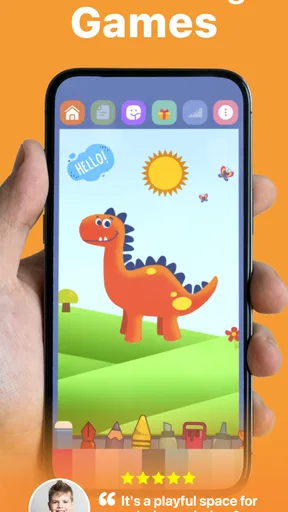
It offers a variety of drawing modes, which is pretty cool. You’ve got your Sketch Desk, Doodle Desk, Kids Desk, and Photo Desk. Each mode is tailored for different creative needs, and trust me, there’s something for everyone. Whether you want to sketch like a pro or just doodle around, this app has you covered.
Features that Stand Out
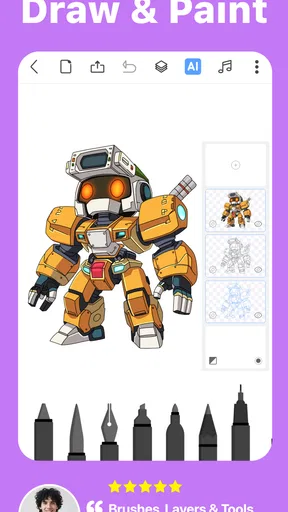
The app comes packed with features, and I mean, packed. It’s like opening a treasure chest of art supplies. You get an extensive selection of brushes, pencils, and colors. The blending tool is particularly impressive, allowing for smooth transitions that give your art a professional touch.
One feature I found particularly nifty is the photo import option. You can snap a picture or pick one from your gallery and transform it into a drawing. It’s perfect for those Instagram-worthy moments you want to turn into sketches. Plus, the layering system is a game-changer. It’s like having Photoshop on your phone, letting you create complex artwork with ease.
User Experience
Using the app feels seamless. The developers have nailed the user experience. Everything flows naturally, from selecting tools to applying effects. It's almost like the app anticipates your next move, which is quite refreshing.
Worth Reading Before You Choose

EA SPORTS FC Mobile 26 Is a Bigger Football Game, but It Takes Time

Flipboard Shows What News Apps Must Do Beyond the Feed

Switching to Android Auto Means Rethinking Your Driving Routine

Google Calendar Makes a Crowded Week Easier to Manage

Ludo King Makes the Most of the Minutes Between Plans

Baby Panda World Brings Quick Play to Modern Phones, but Its Game Library Feels Busy
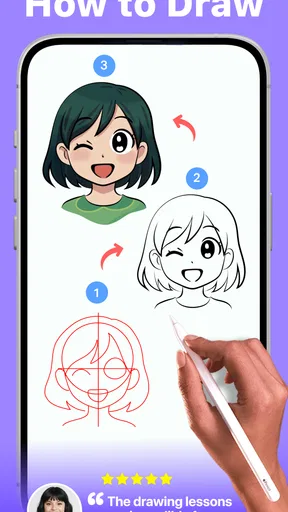
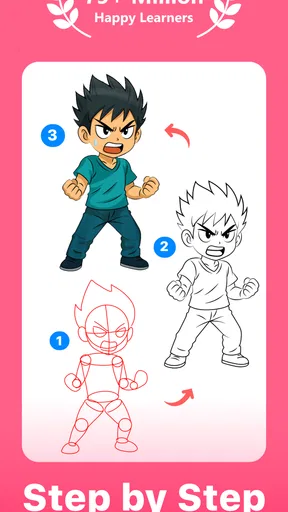
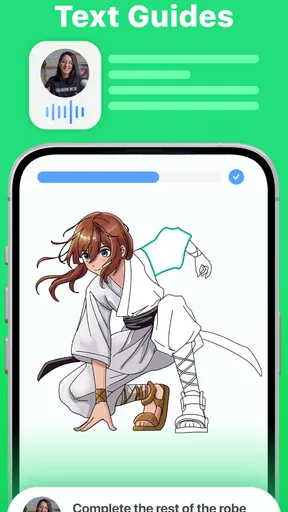
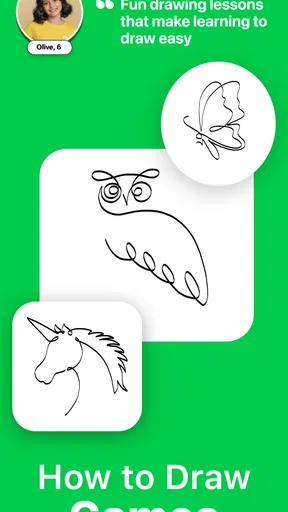
For those who are just starting out, the app provides tutorials that guide you step-by-step. It’s like having a personal art teacher, right in the palm of your hand. The tutorials are easy to follow, and before you know it, you’re doodling like a pro.
Making Lessons Work for You
The lesson library is the part I would use most deliberately. With more than 800 drawing and painting lessons, it is easy to treat the app as a catalogue to browse, but that can turn into scrolling instead of practising. I’d pick one lesson, finish a small study, and then repeat the subject from memory. That second attempt is where I can tell whether I learned a shape or merely copied a sequence of steps.
A practical routine is to keep each session narrow: choose one subject, pay attention to its basic shapes, and stop when the goal is met. For example, a beginner who wants to draw a pet could focus on the outline and proportions first, rather than trying to add every detail and colour at once. The lessons are useful as prompts and structure; they do not remove the need to practise observation or make decisions independently.
This also helps answer a common question: is it only for people who cannot draw yet? I wouldn’t limit it to beginners. Someone with experience may find it handy for warm-ups, quick visual experiments, or revisiting a subject in a low-pressure setting. But if your main goal is to build a highly customised professional workflow, lessons and approachable tools may feel like a side activity rather than a complete studio.
Photo Desk and Layering in Practice
Photo-based drawing is most useful when I treat the picture as a reference, not as a shortcut to a finished illustration. A simple workflow is to import a photo, use it to study the large contours, and then make a separate pass for details. Keeping those stages apart with layers can make revisions less frustrating: I can adjust one part of the drawing without having to redo every mark around it.
That flexibility has a limit. Layers help organise a piece, but they also introduce choices that can slow a casual sketch if I create too many before I know what the image needs. I’d start with a small number of clearly purposed layers—for example, one for the rough structure and another for cleaner lines—then add complexity only when it solves a real problem. This is a useful habit in any digital drawing tool, but especially on a phone, where a tidy canvas makes small edits easier to follow.
For a realistic everyday example, imagine waiting at a café and noticing an interesting arrangement of cups, a window, and a plant. I could take a reference photo, open it later, and make a quick outline study rather than trying to finish a polished scene on the spot. That turns an idle moment into a short drawing exercise. It also shows why a phone-sized canvas is convenient for practice, even if it is not the ideal place for every detailed piece.
Where It Fits Among Drawing Apps
Compared with a basic sketching app, the attraction here is the combination of multiple creative modes, lessons, photo work, and a broad set of drawing tools in one place. A minimalist app may be quicker if all I want is a blank canvas and a pencil-like brush. A specialist illustration app may suit me better when I need a more deliberate, fine-tuned workflow for a complex project. Drawing Desk occupies the more welcoming, exploratory space between those options.
That makes it a sensible choice for someone who wants to try different kinds of drawing without first choosing a narrow discipline. The compromise is that breadth does not automatically mean every tool will satisfy an experienced artist’s preferred way of working. If you already rely on a particular advanced workflow, it is worth approaching this as a companion for practice and informal ideas rather than assuming it will replace your main creative setup.
Another question worth considering is whether a phone is enough. For short lessons, doodles, and rough sketches, I find the format convenient because the app is ready when a spare moment appears. For intricate work, screen space and touch input can make precision more demanding. A tablet or a dedicated drawing setup is a better fit if fine control and a larger working area are central to your process.
Who Should Try It—and Who Might Not
I’d recommend it to curious beginners, families looking for an approachable drawing activity, and people who want a structured way to practise in small sessions. Its Kids Desk makes the app especially easy to consider for casual, creative play, while the lesson-led side can give a new learner a starting point. The age rating is Everyone, though a parent should still decide what is appropriate for a child’s device use and any optional purchases.
It may be less suitable for someone who wants a completely distraction-free blank page, or for an artist who needs a tightly specialised toolset and expects a phone app to serve as a full production environment. If you are unsure, I’d begin with a lesson and a simple sketch before spending money. The app is free to download, and optional purchases range from $0.99 to $99.99 per item, so it makes sense to explore the free experience and decide whether the extra options match how you actually draw.
People also ask whether it can be used without prior art skills. That is exactly where guided lessons and distinct drawing modes can help: they lower the effort required to start. Still, no app can make practice unnecessary. I’d think of the lessons as a helpful route into drawing, not a guarantee of instant results. The most rewarding use is returning to a subject, noticing what improved, and trying again.
Community and Sharing
The app also offers a community platform where you can share your creations and get inspired by others. It’s a vibrant space where artists of all levels come together. You can browse through other users’ art, leave comments, and even get feedback. This interactive aspect makes the app feel more like a creative hub rather than just a drawing tool.
Sharing your work is a breeze. You can easily post your creations on social media or send them to friends. It’s all about making art accessible and enjoyable for everyone.
I’d use sharing as a source of motivation rather than as a measure of whether a drawing is good. Posting a small study or sending it to a friend can make a private practice habit feel more rewarding, but feedback is subjective, and a busy community can be more useful for inspiration than for detailed instruction. If I want focused critique, I would ask a specific question about the work instead of expecting a general reaction to explain what to improve.
Practical Details and Final Thoughts
Drawing Desk is a free app in the Art & Design category, developed by 4Axis Technologies. It has a 4.4 average from around 133,000 ratings, with more than 10 million installs. It first appeared on August 8, 2014, and version 10.3.2 requires Android 6.0 or later. The app is rated for Everyone. Those details make it a widely used, established option, but popularity alone does not tell me whether its approach suits my own drawing habits.
So, what's the verdict on Drawing Desk: Learn to Draw? Honestly, it’s a solid app for anyone looking to explore their artistic side. Whether you're a beginner wanting to learn or an artist seeking a portable solution, this app delivers. With its wide range of features and user-friendly design, it’s definitely worth checking out.
My clearest recommendation is to use it with a small goal in mind: complete a lesson, try a quick photo-based study, or spend a few minutes sketching an everyday object. That is where its mix of instruction and flexible modes feels most useful. If you want a highly specialised digital studio, compare it with tools built around that need; if you want an accessible place to practise and experiment, this one is easy to try.
Grab your phone, download the app, and start creating. Who knows, your next masterpiece might just be a few swipes away!
Pros
- User-friendly interface for beginners.
- Wide variety of brushes and tools.
- Supports layers for complex designs.
- Frequent updates and new features.
- Cross-platform cloud saving available.
Cons
- In-app purchases can be pricey.
- Occasional lag on older devices.
- Limited free tool options.
- Ads can be intrusive at times.
- Requires internet for full features.
FAQs for Drawing Desk: Learn to Draw
What features does Drawing Desk: Learn to Draw offer?
Drawing Desk: Learn to Draw provides a comprehensive range of features suitable for both beginners and experienced artists. It includes various drawing tools like pencils, brushes, and markers, along with layers and an extensive color palette. Users can also access tutorials and step-by-step guides to enhance their drawing skills. The app supports both doodling and professional art creation.
Is Drawing Desk: Learn to Draw suitable for beginners?
Yes, Drawing Desk: Learn to Draw is designed to cater to all skill levels, including beginners. The app offers easy-to-follow tutorials and guided lessons that help novice users learn basic drawing techniques. Additionally, its user-friendly interface ensures a smooth learning curve, making it accessible for those new to digital drawing.
Does Drawing Desk: Learn to Draw require an internet connection?
While Drawing Desk: Learn to Draw can be used offline for basic drawing and sketching, some features may require an internet connection. Accessing tutorials, downloading additional resources, and syncing your artwork across devices are functionalities that typically need online access to function properly.
Are there any in-app purchases in Drawing Desk: Learn to Draw?
Drawing Desk: Learn to Draw offers both free and premium versions. The free version provides basic drawing tools and features, while the premium version unlocks advanced tools, additional tutorials, and exclusive content. In-app purchases allow users to buy individual features or subscribe to a monthly or yearly plan for full access.
Can I share my artwork from Drawing Desk: Learn to Draw on social media?
Yes, Drawing Desk: Learn to Draw allows users to easily share their creations on social media platforms. The app includes built-in sharing options, enabling you to post your artwork directly to networks like Instagram, Facebook, and Twitter. This feature enhances community engagement and lets artists showcase their work widely.


